Example
Pages
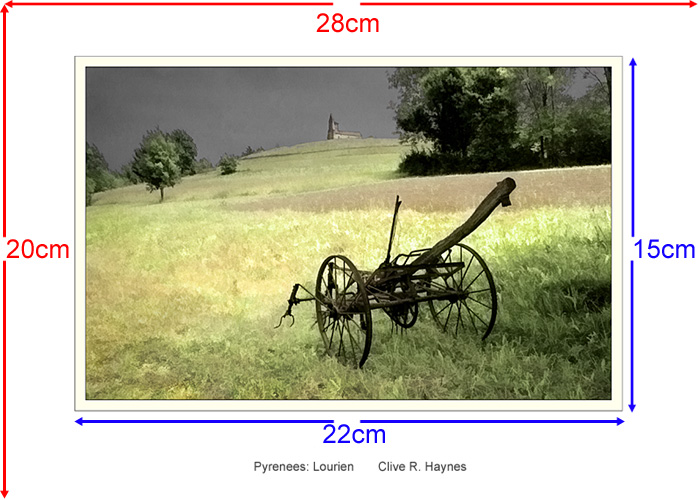
Above:
Horizontal image on page
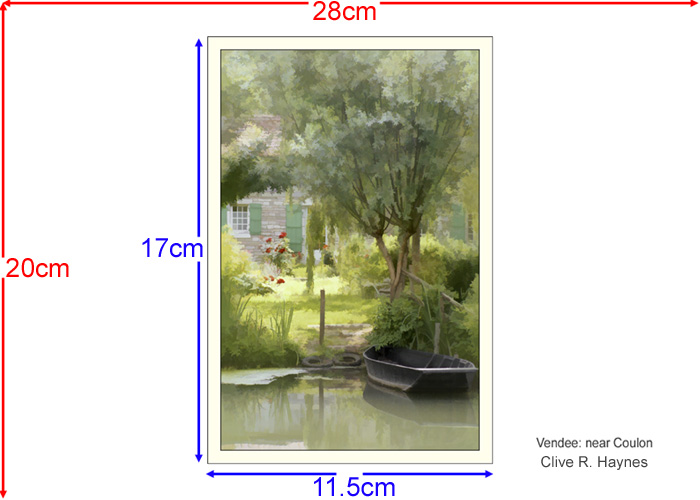
Above:
Vertical image on page
MIDLANDS RPS DIGITAL IMAGING GROUP
Techniques & Technical Info
| How
to create an A4 page for a book or album |
|
Method A 1. Open the image and make to the size required, which is: Horizontal
(landscape) image: 22cm x 15cm 2.
Make certain the the Background colour is set to white, next, go to Image >
Canvass Size 3. Add text, title and your name - for the sake of conformity and clarity use Ariel as the font (size 14 point for the image if the resolution is 200ppi) |
Method B 1. File > New 2.
Set the size to: 3.
For the image you wish to 'import' to the newly created A4 page make the 200ppi
at the correct size for the page. Horizontal
(landscape) image: 22cm x 15cm Should the image be the wrong size then use Edit > Transform > Scale to adjust the dimensions. Don't forget to hold the Shift key down to maintain image proportions. 4. Copy & paste the image to the newly created blank A4 sheet and centre the picture 5. Add text, title and your name. And for the sake of conformity and clarity use Ariel as the font, size 14 point for the image size/resolution above |
Example
Pages |
|
Above:
Horizontal image on page |
|
Above:
Vertical image on page |